Introduction
Samsung has high hopes for the LTE packing Galaxy Note I717 in the United States. Since its launch during CES, the AT&T exclusive device has enjoyed a marketing push like no other Samsung offering to date, including the Galaxy S II lineup. It appeared in a Super Bowl commercial, it starred in New York's Fashion week, etc.
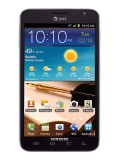
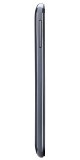
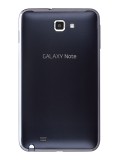
Samsung Galaxy Note I717 official photos
The subject of this review is yet another case of an international Samsung device, gone through a character makeover before hitting the U.S. shores. To be in line with its American siblings, the I717 features four touch sensitive buttons under its screen. A Snapdragon S3 chipset with two 1.5GHz Scorpion cores has replaced the capable Exynos silicon of the global version.
The changes however are not in any case a downgrade. LTE connectivity has been added and with a 5.3" Super AMOLED screen and an S Pen on board, the Samsung Galaxy Note I717 has a market niche of its own.
Here is a look at the key features of the Note I717.
Key features
- Quad-band GSM and tri-band 3G support
- 21 Mbps HSDPA and 5.76 Mbps HSUPA
- LTE network connectivity
- 5.3" 16M-color Super AMOLED capacitive touchscreen of HiDef resolution (800 x 1280 pixels)
- Android OS v2.3.6 with TouchWiz 4 launcher
- 1.5 GHz dual-core Scorpion CPU, Adreno 220 GPU, Snapdragon S3 chipset, 1GB of RAM
- Pre-bundled with the S Pen active stylus
- 8 MP wide-angle autofocus camera with LED flash, face, smile and blink detection
- Video recording of up to 1080p@30fps
- Dual-band Wi-Fi 802.11 b, g and n support; Wi-Fi Direct and Wi-Fi hotspot
- GPS with A-GPS connectivity; Digital compass
- 16 internal storage, microSD slot
- Accelerometer, gyroscope and proximity sensor
- Standard 3.5 mm audio jack
- Charging MHL microUSB port with USB host and TV-out (1080p through optional adapter) support
- Stereo Bluetooth v3.0
- Great audio quality
- 9.7 mm slim and weighs a reasonable 178g
- 2MP secondary video-call camera
- Full Flash support and GPU-acceleration for the web browser permit 1080p flash video playback
- Document editor
- File manager comes preinstalled
- Extremely rich audio and video format support
- 2500 mAh battery
Main disadvantages
- Won't fit comfortably in every pocket
- Difficult for one-handed use
- No dedicated camera key
- The Exynos chipset of the global version is significantly faster- both in benchmarks and real life
- HD screen uses PenTile matrix lowering perceived resolution
- No FM radio (the global version has one)
As you can see, the AT&T Galaxy Note's spec sheet is long enough to satisfy even the most demanding users. As far as the phoneblet's disadvantages go, the substitution of the powerful Exynos chipset for a Qualcomm made one is probably the biggest letdown in the U.S. Galaxy Note. The Snapdragon S3 is simply not as powerful. You do however, get LTE connectivity thanks to it - a nice way to ease the pain over the lost oomph.
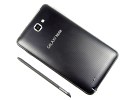
Samsung Galaxy Note I717 live shots
So, does the Samsung Galaxy Note I717 have what it takes to make people ditch their current smartphones and tablets for a device, which tries to do it all? Read on to find out. As always, we will begin with an unboxing, followed by design and build quality inspection.
Editorial: You might notice that this review is shorter than usual and doesn't include all of our proprietary tests. The reason is it has been prepared and written far away from our office and test lab. The Samsung Galaxy Note I717 for AT&T is a US-only phone, so it will probably never get to the shores of the Old Continent. Still, we think we've captured the essence of the phone in the same precise, informative and detailed way that's become our trademark. Enjoy the good read!
Bare bones retail package
Surprisingly, the retail box of the Samsung Galaxy Note I717 is quite small. Inside, you will find a charger and microUSB cable, as well as the usual booklets.
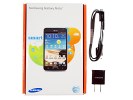
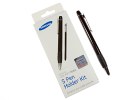
The retail package • the S Pen Holder Kit is optional
The Galaxy Note's retail package is yet another example of a seriously negative trend, which has begun recently. Too often, we see essential accessories such as headphones and/or memory cards omitted from the retail boxes of the carrier branded devices. We hope this will not be the future norm in the industry.
Design and build quality
Samsung have never been particularly bold with the design of the smartphones in their U.S. lineup and the Galaxy Note I717 is no exception. The device has ditched the hardware home key of its global relative and looks like a stretched out member of the Galaxy S II family - not a bad thing, we think. The device looks simple, but definitely not understated due to its sheer size.
Build quality holds no surprises as well. The device is put together from high quality plastic in order to keep its weight in check. Going heavy on the metal would have simply made it impossible for the phoneblet to sit comfortably in your pocket. The screen is protected by Corning's Gorilla Glass, so scratches are highly unlikely.
Speaking of the Samsung Galaxy Note size, there are two approaches to it. Its measures of 146.8 x 83 x 9.7 mm, coupled with 178 grams of weight, qualify the handset as huge by any smartphone standards. If you look at the I717 as a tablet however, the perspective changes completely. It is easier to carry around than any tablet, without (mostly) compromising on functionality.
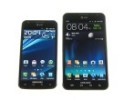
The Samsung Galaxy Note I717 makes the Galaxy S II Skyrocket look small
The 5.3" Super AMOLED screen of the Galaxy Note I717 is simply gorgeous. It gives you 800x1280 pixels of infinite contrast and blacks. It can be quite power efficient too - as long as you use predominantly black backgrounds.
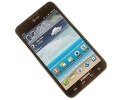
The screen is amazing
The benefits of such a display are clear in every aspect of the handset's functionality. Multimedia and gaming are a pleasure, and so are web browsing and typing. You can see our in depth inspection of ithere.
Below the screen, you will find the typical for all U.S. Samsung Android smartphones four touch sensitive keys. Above the display is where the front-facing camera, earpiece, ambient light and proximity sensors reside.
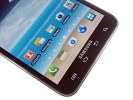
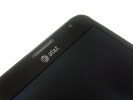
The view above and below the display
The volume rocker of the Galaxy Note is located on its left side. Using it with one hand is a rather tricky exercise. The power/lock key is located on the right side of the device.
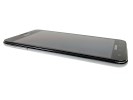
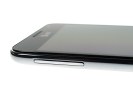
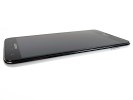
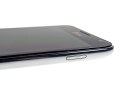
The volume rocker on the left side • the power/lock key on the right
A 3.5mm audio jack is located on the top of the I717. A secondary microphone keeps it company. The microUSB port and mouthpiece can be found on the bottom of the device.
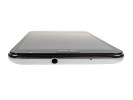
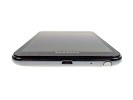
The top of the device holds no surprises and neither does its bottom
The 8 megapixel camera lens has the LED flash by its side on the back of the Samsung Galaxy Note. A tiny latch for removing the battery cover resides here as well.
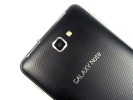
The 8MP camera and LED flash are on the back
The S Pen compartment is in the bottom left corner. We'd like to mention here is that the S Pen itself is rather hard to pull out. It is better this way than being too loose and likely to fall off and get lost. The loudspeaker grille is here as well.
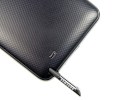
The S Pen compartment and loudspeaker grille
There are no surprises under the battery cover of the Galaxy Note I717. There, you will find the beefy 2500mAh battery, along with the SIM and microSD card covers.
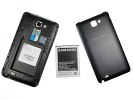
Typical view under the battery cover
The Samsung Galaxy Note I717 did slightly better than its global relative in our battery test by achieving a score of 40. This means that we've rated the phone as needing a recharge every 40 hours if you use it for an hour each of phone calls, web browsing, and video playback every day. A different usage pattern will likely change this number, but our controlled test criteria makes it easy to compare to other smartphones out there.
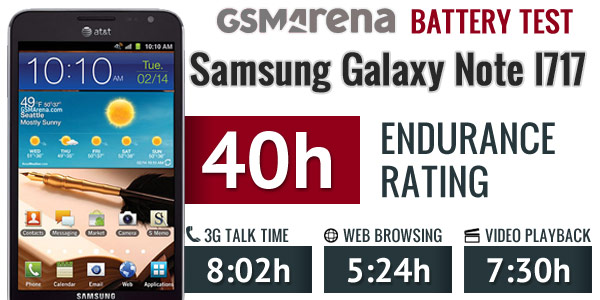
Source: gmsarena.com
If you end up having the device however, it is likely that you'll use it quite heavily. We easily managed a full day on a single charge, despite keeping the device busy a lot longer than in our controlled battery test.
Handling the Galaxy Note takes some getting used to. One handed operation is quite tricky - you are setting yourself up for an unpleasant accident. We will highly recommend that you hang on to the device with two hands when playing around with it.
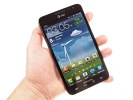
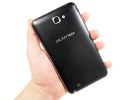
Handling the Samsung Galaxy Note I717 can be tricky
Overall, there were no surprises in the design and build quality of the I717. The device feels solid and ready to take a beating in the hands of a heavy user. Difficult one handed operation is hardly a surprise. It is still an acceptable price to pay for having such a gorgeous screen.
We are now going to take a look at the software of the phoneblet. Don't be surprised if things look familiar here - the device is practically identical to the global version, which we have already examined in depth.
User interface
The Samsung Galaxy Note comes with the phone version of Android 2.3.6 Gingerbread and the home-baked TouchWiz 4.0 launcher out of the box. Its changed look is down to the fact that the WXGA resolution can accommodate more stuff on some screens but, for the most part, it's identical to what you get on a Galaxy S II.
The Galaxy Note comes with a somewhat different design for the lockscreen from the rest of the Samsung lineup, but it works in just the same way - you can go past it by placing your finger anywhere and swiping in any direction. The lock symbol appears under your finger, placed within two circles. Your swipe has to get out of the outer circle for the screen to unlock.
Missed events get their own notifications on the lockscreen with dedicated icons. If you start your unlocking gesture there you are taken straight to the respective app (call log, messaging center, etc).

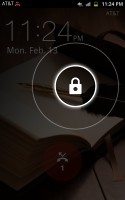
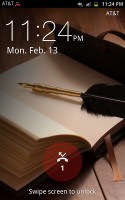
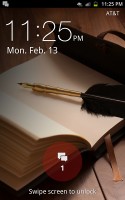
The lockscreen
The homescreen is unchanged. Adding widgets to it has the same nice transition effects too, so there's nothing missing.
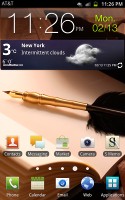
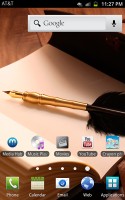

The homescreen has more room now
There are some Galaxy Note exclusive widgets, which let you launch the S Pen applications. We'll be looking at them in a second.
Just like the Galaxy S II, the Galaxy Note comes with two cool live wallpapers, developed in cooperation with Accuweather, which display the current weather conditions on the whole screen.
Think Sense UI weather widget, but on a larger scale. The two different wallpapers in fact only differ by the background - one has a few wind-power propellers, while the other uses a beach.

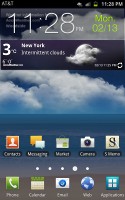
Two of the live wallpapers change according to the weather in your area
Editing the homescreen panes is business as usual - you pinch zoom-out to display an aggregate view of all panes, which you can then easily rearrange, delete or add.
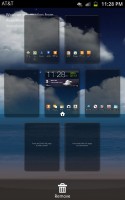
Rearranging the homescreen panes
The numbered dots that identify the homescreen panes serve as a scroll bar too. A press and hold on the dots lets you scroll sideways through the resized images of the available homescreen panes in one short go rather than with several swipes.
There was some work done on the app toolbar at the bottom. For one, you can now create folders inside it (though given you can have folders on the homescreen, we don't see much use for that here).
Still, creating folders on the shortcut toolbar is pretty easy stuff - in edit mode you drag the icons you want over to a blank folder icon at the bottom of the screen. Then you drag the folder to the screen on which you want it to be placed and pick a name for it.
You can create new menu pages in much the same way - browsing your existing ones and picking the icons that you want to have placed on the new page.
Needless to say, the app launcher panes can be rearranged exactly like you would the homescreen - pinch zoom and some swiping around does the trick quickly and intuitively.
The added bonus here is that each app drawer pane holds five rows of five icons each instead of the 4x4 grid of the Galaxy S II. The docked icons at the bottom are also five now - both possible thanks to the larger higher-res screen.
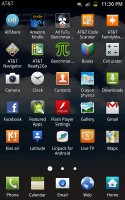
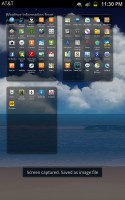
The WXGA resolution allows for more icons on each screen
The notification area has been slightly redesigned in TouchWiz 4, but there aren't any major changes to functionality there.
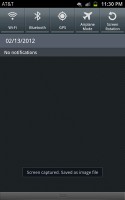
The notification area hasn't changed much
On the other hand, the task manager, which Samsung has preinstalled, has seen some functional updates. The RAM screen has been modified and there is only one clear memory button now, instead of the two in the previous version. Now, with 1GB or RAM and with the new Gingerbread policy of keeping resource-hungry background processes in check, we are not sure you will need to enter the task manager all that often, but it doesn't hurt having it on board.
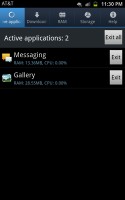
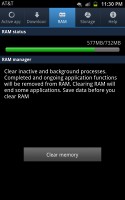
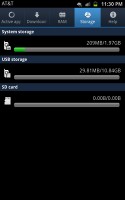
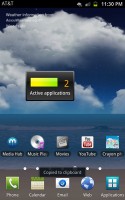
The preinstalled task manager and its homescreen widget
Just like its smaller Galaxy S II siblings, the Galaxy Note supports gesture controls across the interface. Those include the usual stuff like turn-to-mute or snooze the alarm, as well as tilting your phone to zoom in and out in the gallery or the web browser. You can also turn it sideways to move widgets around the homescreen or icons around the app drawer. To be fair though, we only found the turn to mute really helpful and rarely used any of the others.
A number of preinstalled AT&T applications come preloaded on the I717. Thankfully however, you can remove most of them manually. On this occasion we must give our thanks to AT&T for allowing this.
S Pen
The S Pen is easily the most dramatic feature in the user interface of the Galaxy Not. We know many of you are skeptical about using styli on a capacitive screen, but there's a reason why this one deserved a name.
The stylus of the Galaxy Note has been developed by Samsung with the help of Wacom. The company is the premier manufacturer of interactive pen displays, pen tablets, and digital interface solutions, thus giving this unusual accessory some serious credentials.
The S Pen is a passive device (as in, it has no battery), but it still offers some extra functionality thanks to the button that's built into the little stick. You can simply use it to replace your finger of course, but that's hardly the point here.
The real fun starts when the S Pen button comes into play. For starters, if you hold the key and hold the S Pen over any screen of the Note UI, it will make a screenshot and go straight to edit mode, so you can put down notes over that same screenshot.
Here is a quick idea of what you can do with a screenshot
Alternatively, you can hold the key and double tap on the screen (again it works in any part of the interface) to launch the S Memo Lite pad. That's merely a blank page for you to take notes, draw and whatnot.

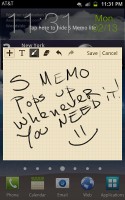
S Memo Lite
A press of the S Pen key and swipe to the left means back, so you can also navigate the interface with it. If you do the same thing but swipe upwards instead, the context menu will appear, as if you have pressed the left capacitive key. That means that the S Pen allows you to operate your phoneblet without pressing any hardware keys, making Gingerbread an all-touch platform.
We have prepared a video to give you an idea of the responsiveness and precision of the S Pen.
The S Pen isn't exactly instant, but the kind of precision it offers does the job quite well. There is room for improvement, of course, but even as it is, the fancy stylus opens quite a lot of doors to the Galaxy Note.
The SDK for the S Pen is already out, so we can reasonably expect specific apps to come out for it in the nearest future. The device already comes with a physics based game, developed specifically for the S Pen, called Crayon Physics. The popular Sketchbook Mobile also supports the S Pen. The app lets you get seriously creative. Here's a quick example.
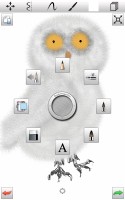

Sketchbook Mobile partners very nicely with the S Pen
We are now going to take a look at the performance of the Snapdragon S3 chipset, and check if it is a worthy replacement of the powerful Exynos silicon, which the N7000 packs.

No comments:
Post a Comment