Introduction
Like the world needs another 7" Android tablet. Well, maybe it does. Or (more likely), it doesn't. No matter where you stand, the Kindle Fire couldn't be less relevant to this debate. It isn't just another Android tablet. It's a hardware Amazon account, 7 inches tall by 5 inches wide. If tablets are for fun and laptops are for work, the Kindle Fire is for shopping.
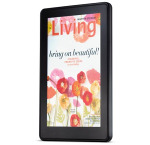
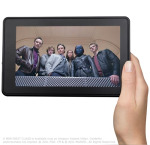

Amazon Kindle Fire official pictures
If you put Amazon and the Kindle Fire in a multiple choice question, the answer won't be A) Because everyone else is doing it. It's more like B) We need to do for music, videos, apps and games what Kindle does for books. Simple as that.
The Kindle Fire isn't about versatility in an ultra-portable form factor. Some tablets are. The Fire isn't desperate to unsettle Apple's iPad. Some Android tablets are. We'll say it again. The Kindle Fire isn't your average Android tablet. In a way, it isn't your tablet. Well, yes, it's yours to have but the content to enjoy on it is Amazon's to sell.
Key features
- 7" 16:9 IPS LCD capacitive touchscreen of WSVGA resolution (1024 x 600) pixels
- Wi-Fi 802.11 b/g/n connectivity
- 1GHz dual-core Cortex-A9 CPU, PowerVR SGX540 GPU, TI OMAP 4430 chipset
- License-free Android-based OS
- 8GB of on-board storage, free cloud storage for all Amazon content
- Weight of 413 grams
- Accelerometer
- Excellent HTML5 browser
- Adobe Flash support, Flash videos up to 720p
- Standard microUSB port, mass storage
- 3.5mm audio jack
Main disadvantages
- No 3G
- No memory card slot, limited inbuilt storage
- Reflective screen of poor brightness
- Very limited video codec support
- No camera
- No physical volume controls
- Non replaceable battery
- No native Google apps, no access to the Android Market
- Some features unavailable without an Amazon Prime account
- Video streaming not available outside US
The Kindle Fire is not an e-reader. It's a multimedia device with web browsing and email - and that's a lot more than an e-book reader. Yet, the backlit LCD screen is obviously no match for e-ink. The Kindle Fire is touted as a reading device - as much as it's for Internet browsing, listening and watching. If it's mags and comics, we'd agree. For e-books, any other Kindle would do a much better job. The Fire is actually for users who have a Kindle already. It's an addition - not a replacement - to any generation of Amazon's e-ink devices.
An older-gen Kindle e-reader and a Fire combined cost less than most tablets out there. The Kindle is so cheap because it lacks many basic features. The sub-200 dollar price tag is meant to encourage Amazon subscribers to keep on shopping for music, video, apps and games as they've been for books on their Kindle readers.
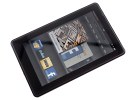
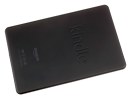
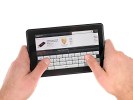
Amazon Kindle Fire live pictures
On the other hand, the shocking lack of features (in what's technically an Android tablet) is meant to discourage bargain-hunters who have no intention of ever buying Amazon's content.
The Kindle Fire is not competing with Samsung, LG or any other maker of Android tablets. Amazon's profit is not in the hardware they ship, they sell digital content. Amazon is not racing with Apple's iPads and iPod Touch. They're after Apple's iTunes.
We know this doesn't make the Kindle Fire's limitations more palatable. But maybe it helps have the right kind of expectations about the device. The Fire is a nice and easy gadget, which is meant to bring a huge catalog of digital content a click away. Not the dirty cheap tablet some may have been hoping for.
Unboxing Kindle Fire
The Kindle Fire ships in a plain box and there's a single accessory inside - the standard microUSB charger. No one could reasonably expect more for the price. Amazon are always open for business and would certainly love for the shopping to begin as soon as the box is opened. There're plenty of accessories available to buy on Amazon, from USB cables to various sleeves and leather cases.

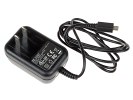
The Amazon Kindle Fire retail package
Design and build quality
The Kindle Fire is an almost exact replica of the BlackBerry PlayBook. As if they wanted something classic but not too popular. The two devices are nearly identical in proportion, RIM's tablet being a tad taller and wider. The screens are the same size and resolution and around back you get the same soft rubbery finish.
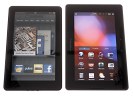
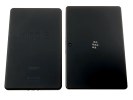
The Kindle Fire next to the PlayBook
Strictly speaking, the Amazon Kindle Fire looks like RIM's tablet but perhaps the other way around could be a major morale booster for the PlayBook. In all fairness though, build quality is one thing we were perfectly happy with in the BlackBerry tablet. So, the Kindle Fire is excellently built and with very good handling. The thinner screen bezel makes it even better.
The most notable difference between those two is the lack of any camera on the Kindle. There is no volume rocker either.
But first things first. The Kindle Fire comes with an LG-made 7" IPS TFT display of WSVGA (1024 x 600) resolution. We guess the typical Kindle user is right to expect the same level of comfort as they get from e-ink screens. Of course these are vastly different scenarios. Reading text off an e-ink screen is equally enjoyable indoors and outdoors. Unfortunately, we can't say the same about the Fire. Whether browsing the internet or watching videos, the screen is a poor outdoor performer. .
A 7" IPS TFT touchscreen
The Kindle Fire display is quite reflective and just not bright enough. Our test reported reasonably deep blacks, not so bright white, but overall satisfactory contrast. It's the brightness that fails it. Our brightness test at 50% returned results that are closer to what you'd expect at 20% to 30% screen brightness.
At full 100%, the Kindle Fire fares better than the PlayBook, but is by far not the brightest screen we've seen on a tablet. It is possible that Amazon chose to lower the maximum brightness in order to squeeze some additional minutes of battery life. Although, the Fire cannot possibly be expected to match the battery longevity of e-readers.
| Display test | 50% brightness | 100% brightness | ||||
| Black, cd/m2 | White, cd/m2 | Black, cd/m2 | White, cd/m2 | |||
| Amazon Kindle Fire | 0.09 | 82 | 933 | 0.45 | 401 | 896 |
| Samsung Galaxy Tab 7.0 Plus | 0.17 | 196 | 1141 | 0.34 | 424 | 1236 |
| Samsung Galaxy Tab 10.1 | 0.31 | 257 | 826 | 0.55 | 502 | 915 |
| HTC Flyer | 0.18 | 169 | 921 | 0.41 | 409 | 1002 |
| Motorola XOOM | 0.12 | 216 | 1853 | 0.21 | 436 | 2041 |
| LG Optimus Pad | 0.19 | 170 | 889 | 0.57 | 458 | 811 |
| Apple iPad 2 | 0.18 | 167 | 925 | 0.55 | 429 | 775 |
| Apple iPad | 0.18 | 178 | 834 | 0.53 | 410 | 776 |
There seems to be nothing around the display. The glossy black bezel is thinner than the PlayBook's - the edge is no longer touch sensitive, the lack of camera hardware perhaps helps too. If you look closer though, you'll find an ambient-light sensor hidden in the top left corner. Unfortunately, the Kindle Fire's screen doesn't react to changes in lighting. It seems the OS isn't using the sensor just yet.
The long sides of the Kindle Fire are completely bare. A volume rocker would've been welcome. A couple of extra clicks to get to the software controls are a minor but real annoyance.
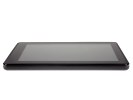
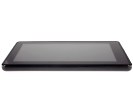
The left and right sides are completely bare
Both the stereo speakers are on top (in portrait mode), while the bottom features the 3.5mm audio jack and microUSB port. A tiny Lock/Power key is there as well. It seems the wrong place to have the sleep button but we didn't have usability problems with its placement. It's not so easy to accidentally put the tablet to sleep as some user reviews have suggested.
The two connectivity ports are two close to one another and the Fire isn't very comfortable to hold with both the charger and a headset plugged in. The bigger problem is the speaker placement. They are easy to muffle with a hand when the device is held landscape.
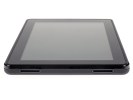
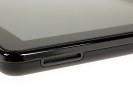
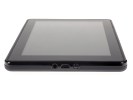
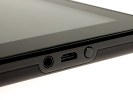
The top side has the speakers, while the bottom features the audio jack, USB port and Lock key
The Kindle Fire's back is made entirely of rubberized plastic with the Kindle logo carved out in the middle. It's slip-proof and nice to touch but easily covered in smudges. On top of that, it's a nightmare to clean. The soft surface is somewhat too easy to scratch as well.
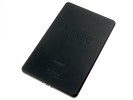
The Kindle Fire rubbery back
The battery inside is non-user-replaceable and has a capacity of 4400mAh - less than the PlayBook's. We made a few tests to give you an idea of what to expect. If you use the Kindle Fire for web browsing you'll have 6 hours and 15 minutes before it dies, while if you want to watch some movies you'll have plenty of time - it took us 6 and a half hours before you drain the battery.
The Amazon Kindle Fire is chunky in a nice, friendly way, and solidly built. It's comfortable to hold and looks simple and welcoming. It's somewhat similar to the BlackBerry PlayBook but not awkwardly so. Just like it, the Kindle Fire makes a strong claim that zero styling doesn't mean zero style. The one thing that bothered us a bit was the back - it quickly gets covered in smudges and looks vulnerable to scratches..
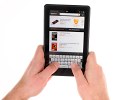
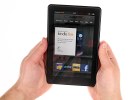
User interface
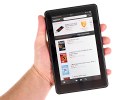
The Kindle Fire OS is based on Android, but you rarely get a glimpse of anything familiar - like the mini settings menu that pops up at the bottom of the screen in some apps. It is a forked version of Android - using the open source code but not licensed by Google, meaning you don't get native Google apps and the Android Market.
The OS has been styled completely to Amazon's taste, with most of the Android features cut off. The end result is simple and straightforward - in line with the Fire's main purpose of giving you one click access to Amazon's content. There's also a tinge of disappointment at what the tablet could've been capable of with a fully-fledged version of Android .

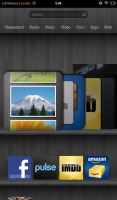
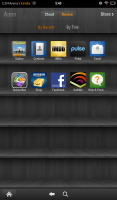
Kindle Fire user interface
The Kindle Fire's homescreen just couldn't have been more basic. Under the Search bar and Categories, you get a virtual bookshelf with all the content you've accessed or stored.
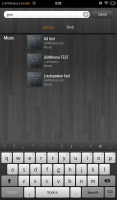
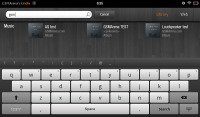
Search and the Kindle Fire keyboard
At the top of the homescreen, there are seven categories below the search bar: Newsstand, Books, Music, Video, Docs, Apps and Web. Tapping on any of them will take you to the dedicated app or relevant content catalog.
Further down, a Cover Flow-like scrollable 3D list of icons, called the Carousel, features all the items you've accessed recently. It is generated automatically and can get a bit messy as it fills up with shortcuts of varying size and shape to everything you've opened recently. It could be anything: media files, books, webpages, apps, docs, etc. The good thing is, the latest software version lets you remove items from the Carousel.
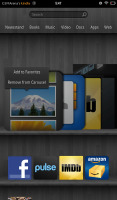
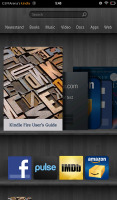
The Carousel and Favorites
Below the Carrousel is the Favorites section. Essentially, you can pin anything to the homescreen for quick access - a book, an entire album or a single song, an app, a document, a webpage, etc. There is no limit of the number of items you can place on the homescreen. Extra rows are added to the bookshelf as you add shortcuts.
Just like on every other Android device, the Amazon Kindle has a status bar at the top, which expands into a notification are and some quick settings. In the Kindle Fire it's split in two. A tap in the right corner, near the status indicators, will pull down the settings: a few quick toggles for autorotation lock, volume, brightness, Wi-Fi, Sync and More. If you tap on More you'll be taken to the full settings menu.
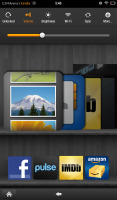
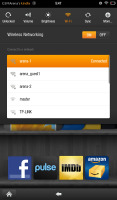
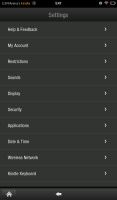
The status bar and settings
To expand the actual notification area, you need to tap near the device's name.

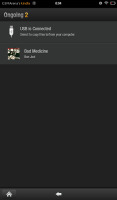
The notification area
There have been only a few software updates for the Kindle Fire so far and many users report improved speed and overall handling. We obviously have no idea about how the Fire felt at launch, but it isn't anything particularly impressive performance-wise running the latest software. We wouldn't call it slow but scrolling and zooming could've been a tad smoother.
Simple contact management
The Contacts app is resembles the Android 2.3 Gingerbread's phonebook but isn't that powerful. It displays all the contacts in a list ordered alphabetically and there is an alphabet bar on the right. It's not a scroll this time, you must tap on the letter you want instead of scrolling through them.
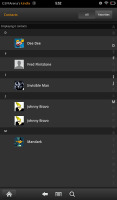
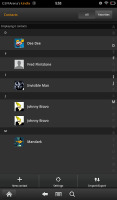


Contacts app • viewing a single contact
There are only two options at the bottom of the phonebook - Advanced options and Search. The shortcut to the Favorite Contacts is at the top right corner.
Each contact is displayed with a contact photo and name. No Quick Contact functionality is available though.
There is no tabbed interface when viewing a single contact. All the stored information is displayed in one page.
The available fields when editing a contact are Name (5 fields), Phone, Email, Postal Address and Organization. Of course, you can add more than one phone, email, etc.
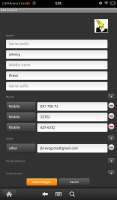
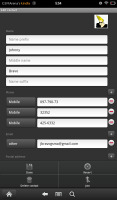
Editing a contact
Email is easy
There is no Gmail app on the Kindle Fire, just the default Android Email app. It is very familiar and offers pretty much the same functionality and UI as the regular Android email client.
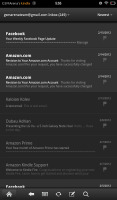
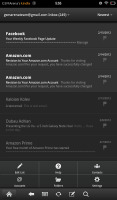
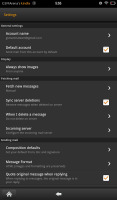

The Email app
Multiple email accounts are also supported. If you add multiple accounts, then the Combined Inbox feature will come in handy.
Tap&Hold on an email gives access to the basics - delete, forward, reply, spam, etc. The bottom bar offers advanced settings, refresh, search and the new email key.
Multimedia - music and video players fail to impress
Both players launch when you tap on the dedicated Music or Video shortcut on the homescreen.
The music player is not too bad at managing your audio files but there's definitely room for improvement.
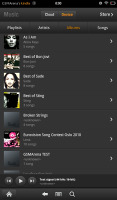
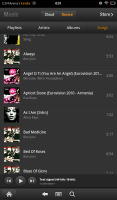
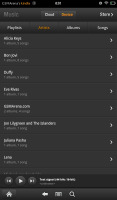
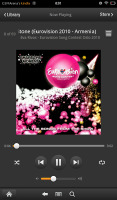
The Music Player
The interface uses four tabs, which offer the four main ways to search your music collection - by artist, album, song or the playlists you've created. At the bottom of that list you can find quick music controls as well.
Repeat and Shuffle are available too.
The Now Playing screen is straight-forward - the album art occupies the better part of the screen, the rest are music controls, volume bar and the song scrubber.
Equalizers are available from the advanced settings.
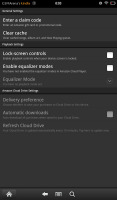
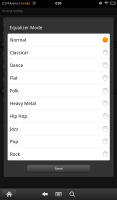
The equalizers are in the advanced settings
There are shortcuts to the Amazon Store and Cloud so you could shop music with just a few taps and access your purchases right away.
Your purchased videos are stored into the Video section, while the ones you've uploaded are found in the Gallery app. The app is the same as the Android's standard one, minus a few tricks. It shows your pictures and videos in stacks, there is slideshow option and multi-touch zooming. That's it.
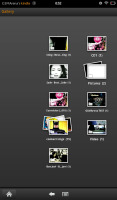
The image gallery
The Gallery's video capabilities are limited to MP4 playback, but it is capable of handling every MP4 video up to 1080p (incl.).
We also tested the loudspeaker performance of Kindle Fire. As it turned out its stereo speakers are really quiet even when you've set the volume to the maximum level. Quite expectedly the Kindle Fire scored Below Average in this test.
| Speakerphone test | Voice, dB | Ringing | Overall score | |
| Amazon Kindle Fire | 66.6 | 63.7 | 66.9 | |
| Samsung Galaxy Tab 7.0 Plus | 66.2 | 65.7 | 65.9 | |
| Samsung Galaxy Tab 10.1 3G | 66.2 | 66.0 | 70.9 | Average |
| Samsung I9100 Galaxy S II | 70.0 | 66.6 | 75.7 | Good |
| Motorola XOOM | 74.0 | 66.6 | 78.9 | Very Good |
| HTC Desire | 76.6 | 75.7 | 84.6 | Excellent |
Top-notch audio output
We were really imressed by the Amazon Kindle Fire performance in our audio quality test. The slate was basically perfect when connected to an active external amplifier and even applying the resistance of a pair of headphones to its lineout didn't cause much degradation.
As you can see from the scores below, the Amazon Kindle Fire gets excellent scores on every part of the no-headphones test. Its volume levels are only average, but its audio output is so clean that we doubt anyone will mind.
What's even more impressive is that very little goes wrong with headphones too. Some hardly detectable intermodulation distortion comes up and the extreme bass frequencies suffer a tiny bit, but you'll barely be able to detect that with a naked ear. And just look at the stereo crosstalk - it's barely affected. The volume levels are also pretty high here, rounding up a pretty great overall performance.
Check out the table and see for yourself.
| Test | Frequency response | Noise level | Dynamic range | THD | IMD + Noise | Stereo crosstalk |
| +0.01, -0.02 | -87.8 | 86.6 | 0.0049 | 0.014 | -83.2 | |
| +0.11, -0.64 | -87.5 | 86.5 | 0.0060 | 0.178 | -70.8 | |
| +0.04, -0.07 | -89.5 | 88.8 | 0.0043 | 0.066 | -83.1 | |
| +0.04, -0.07 | -89.1 | 88.9 | 0.0042 | 0.066 | -32.4 | |
| Samsung Galaxy Note N7000 | +0.04, -0.08 | -90.4 | 88.9 | 0.0044 | 0.066 | -87.4 |
| Samsung Galaxy Note N7000 (headphones attached) | +0.12, -0.06 | -89.7 | 88.4 | 0.0084 | 0.112 | -51.6 |
| +0.02, -0.17 | -90.7 | 90.0 | 0.100 | 0.065 | -87.0 | |
| +0.72, -0.14 | -90.4 | 89.9 | 0.018 | 0.360 | -53.4 |
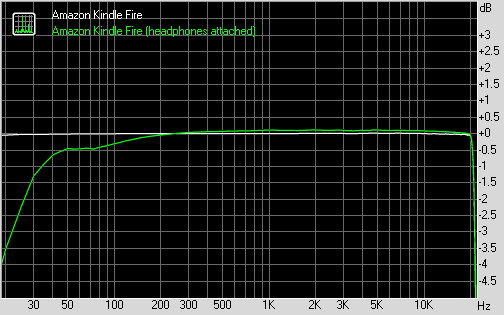
Amazon Kindle Fire frequency response

No comments:
Post a Comment